Rooms
The Rooms module allows you to create and manage the individual rooms available in your property. After defining your Room Types, you can add each physical room and assign it to the appropriate room type.
Every room represents a unique unit in your property and includes details such as the room number, floor, room type, occupancy status
Adding Rooms
BluEarn PMS provides two methods for adding rooms to your property, allowing you to choose the option that best suits your setup.
1. Bulk Add Rooms
The Bulk Add Rooms option is ideal when you need to create multiple rooms at once. This method saves time and simplifies the initial property setup.
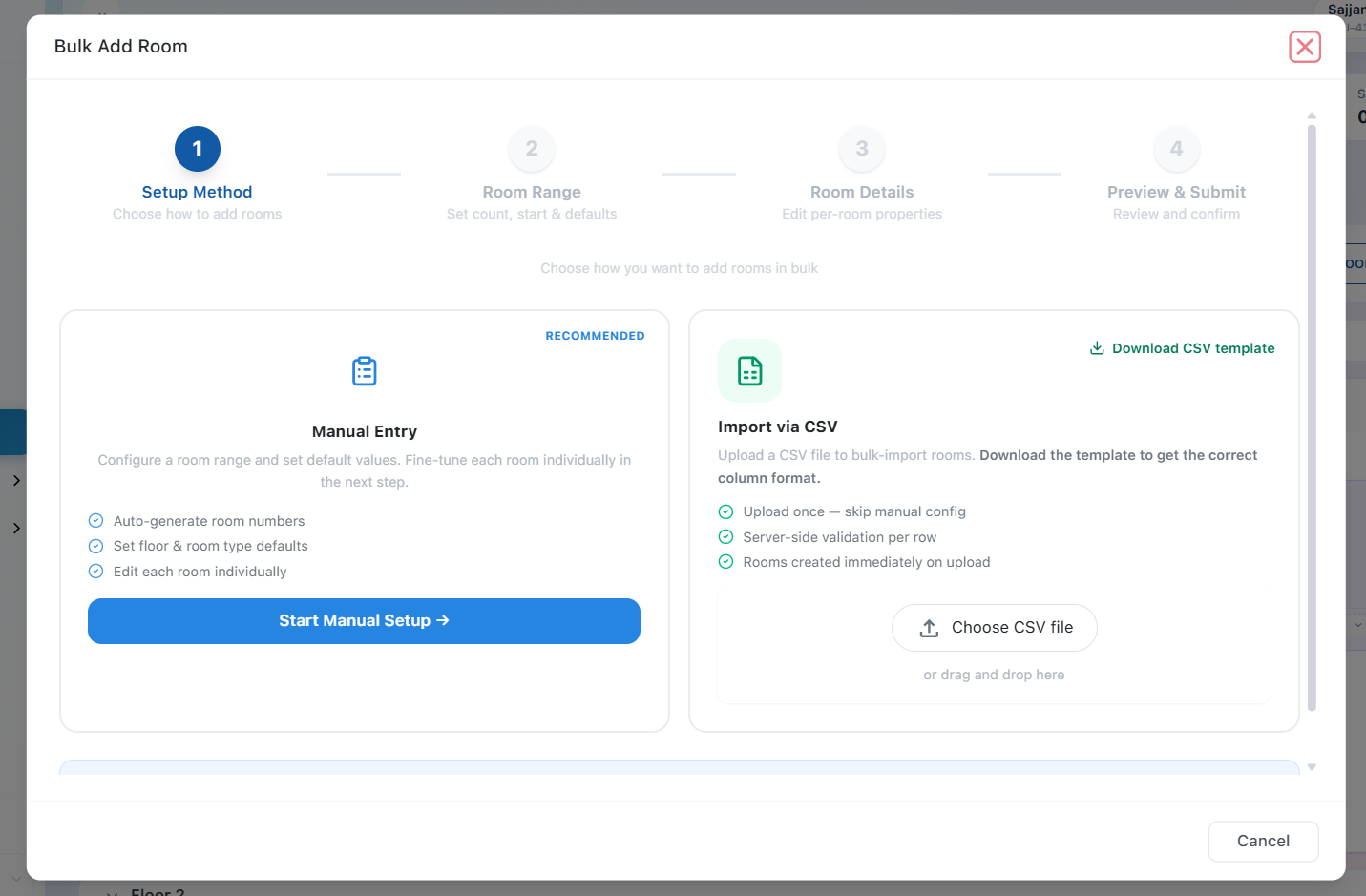 You can add rooms using either of the following methods:
- Manual Entry
Add multiple rooms by entering the required room details directly into the system.
Bulk Room Creation Workflow
The manual room creation process consists of four simple steps:
Setup Method – Choose Manual Entry as the room creation method.
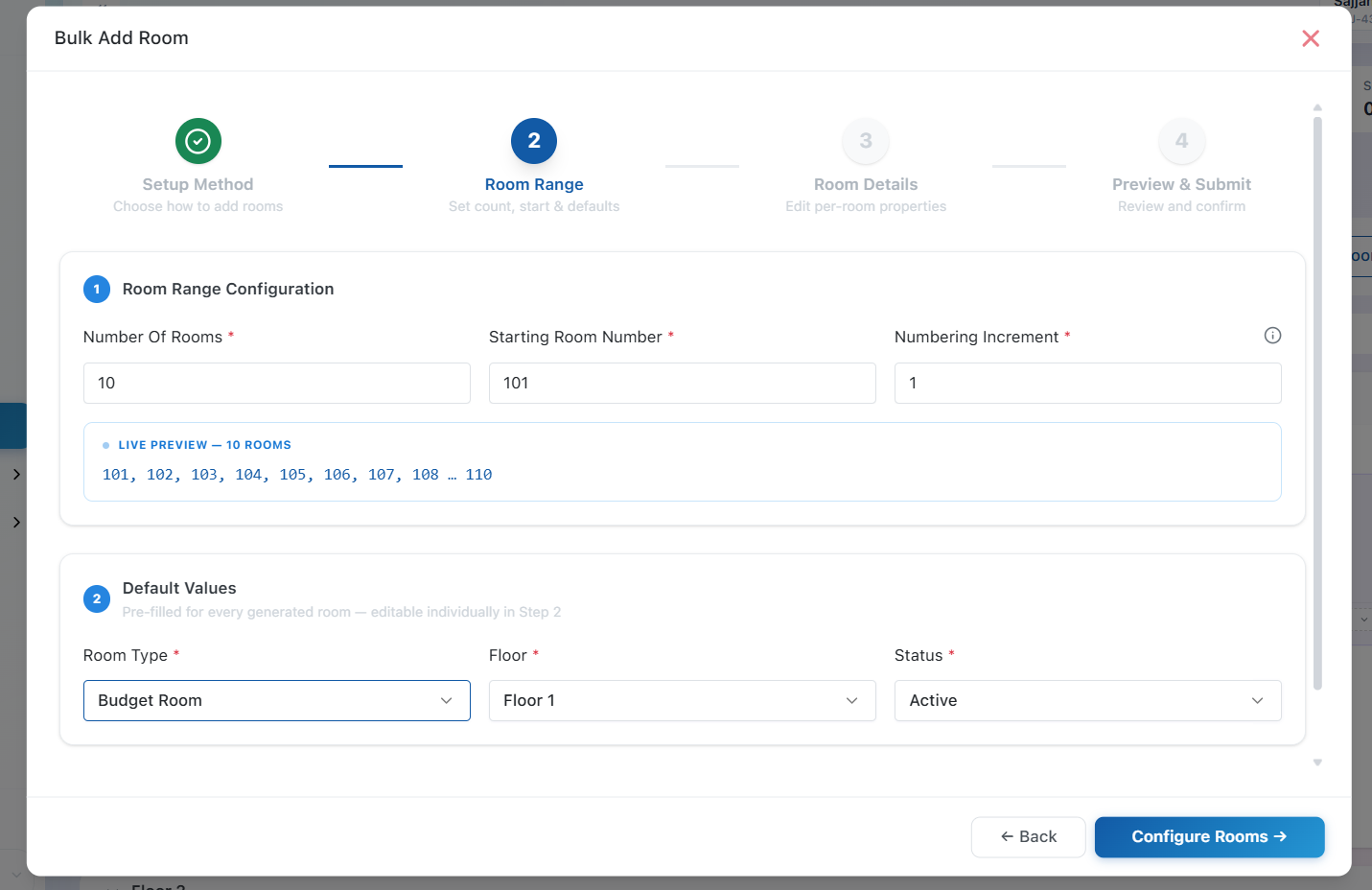
Room Range – Configure the room numbering sequence and assign default values.
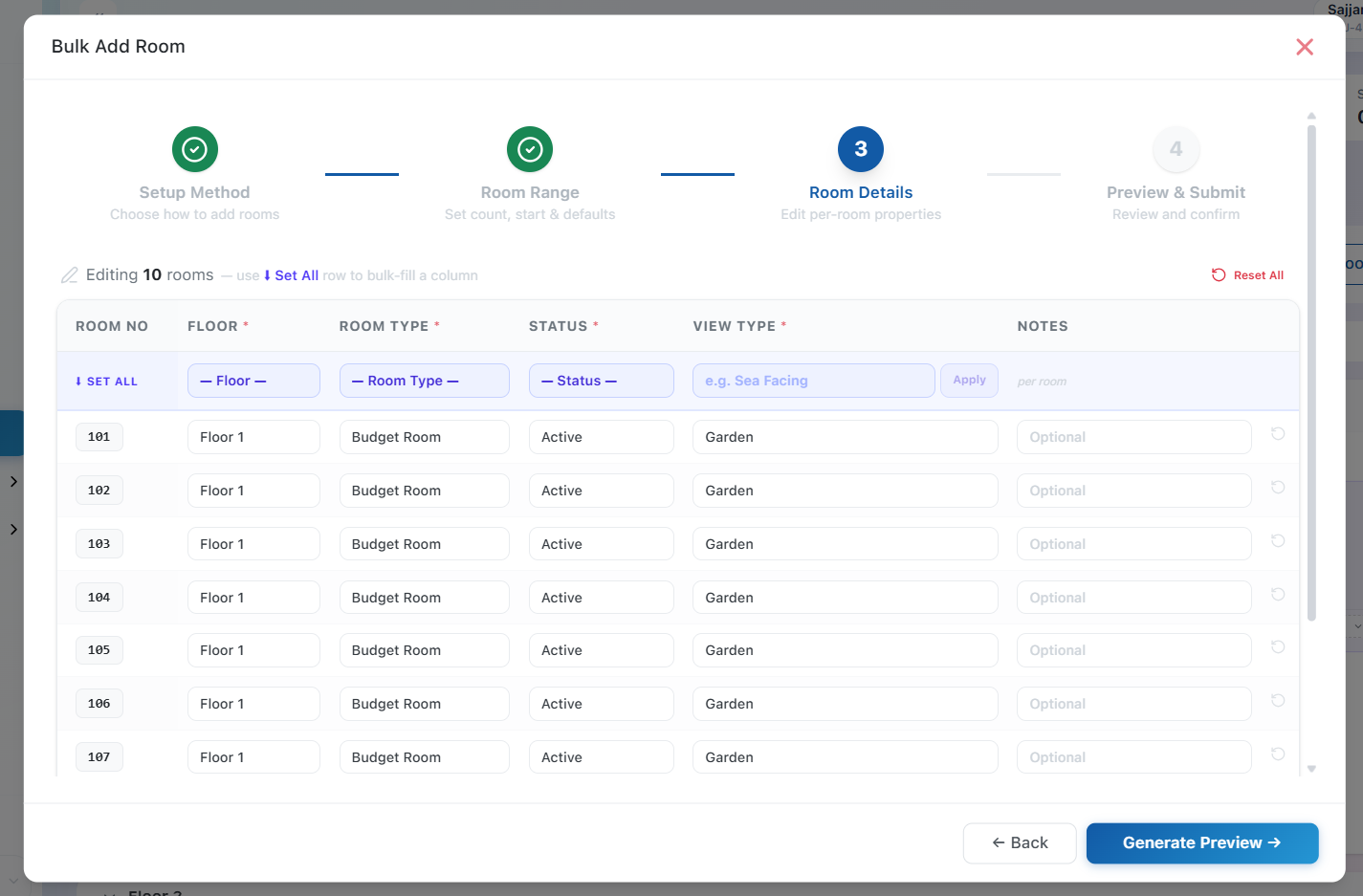
Room Details – Review and edit individual room details and view type is required here and notes are optional.
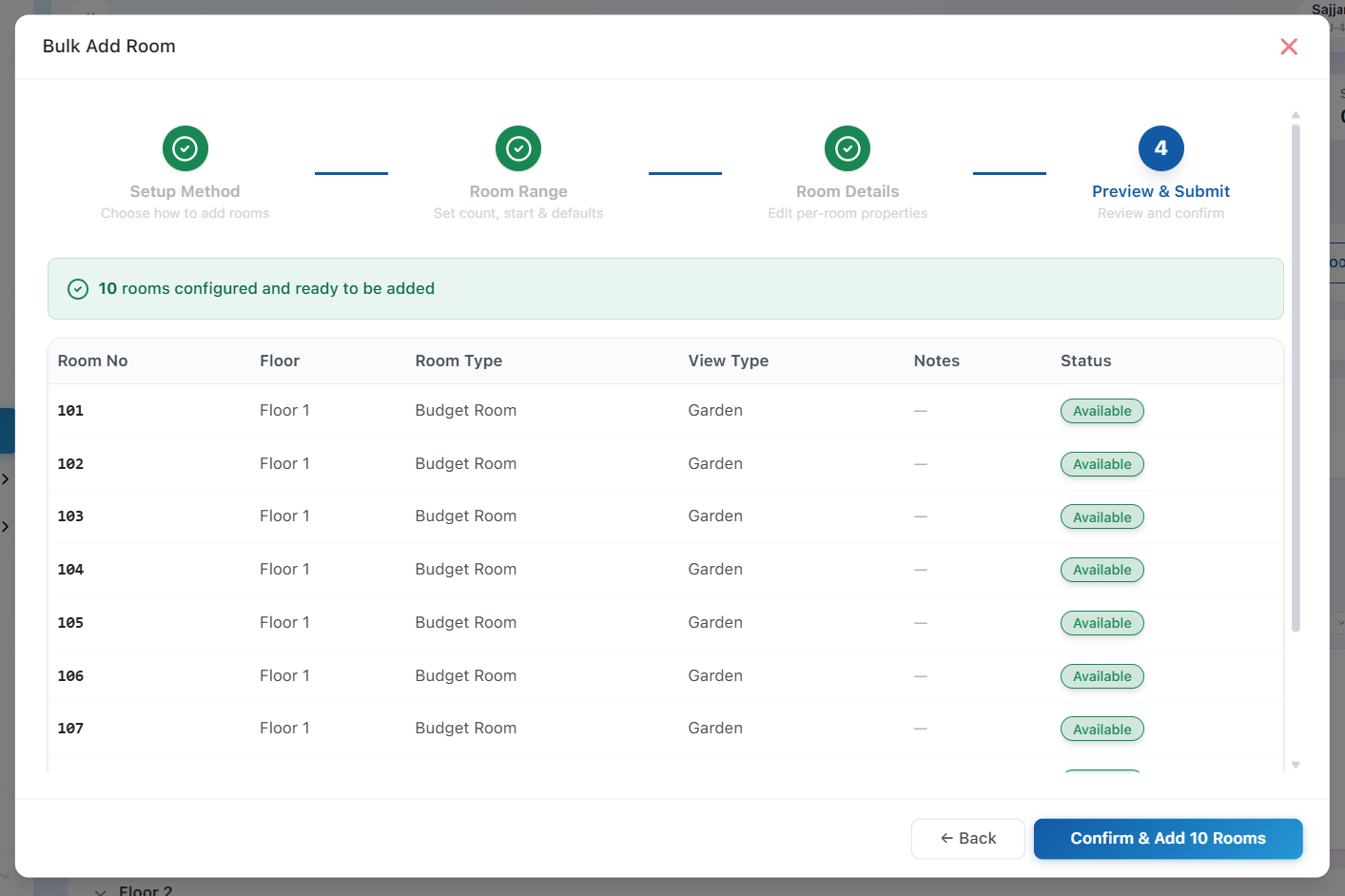
 Preview & Submit – Verify the generated rooms and complete the bulk creation process.
- CSV Import
Upload a CSV file containing your room information to create multiple rooms in a single action. This method is recommended for hotels with a large room inventory, as it significantly reduces manual data entry.
Tip: Ensure your CSV file follows the required template (You can download the CSV Template directly from BluEarn PMS.) and contains valid room information before uploading.
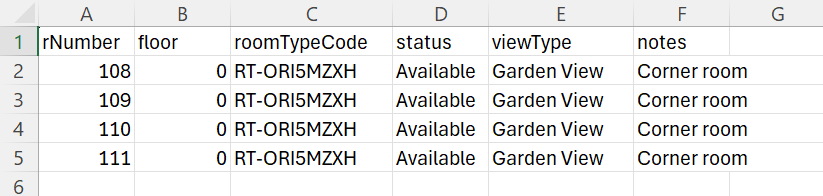
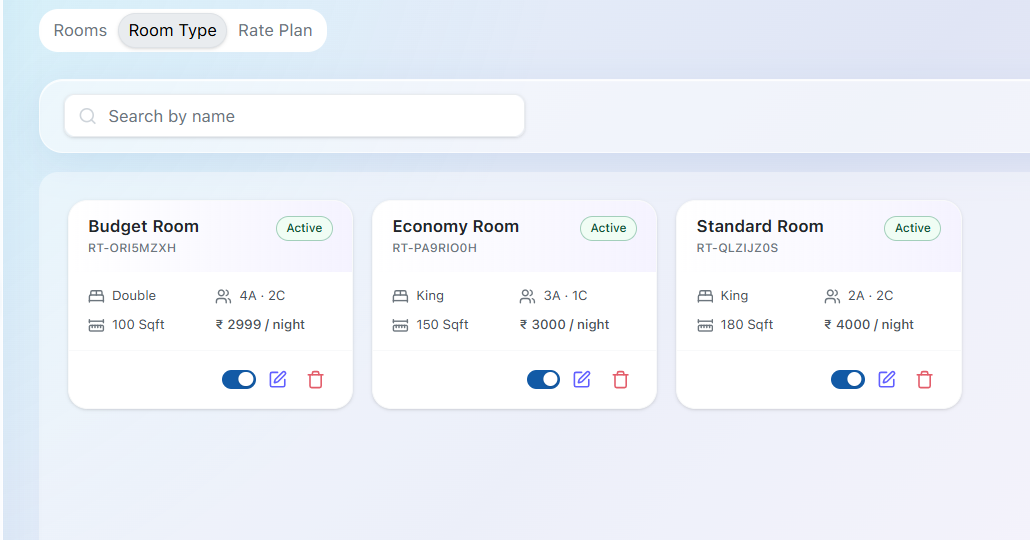
Important: Before importing rooms using a CSV file, ensure that the required Room Types have already been created. Use the Room Type Code from the Room Types module in the CSV file to map each room to the correct room type. Incorrect or invalid room type codes may prevent the import from completing successfully.
2. Add Room
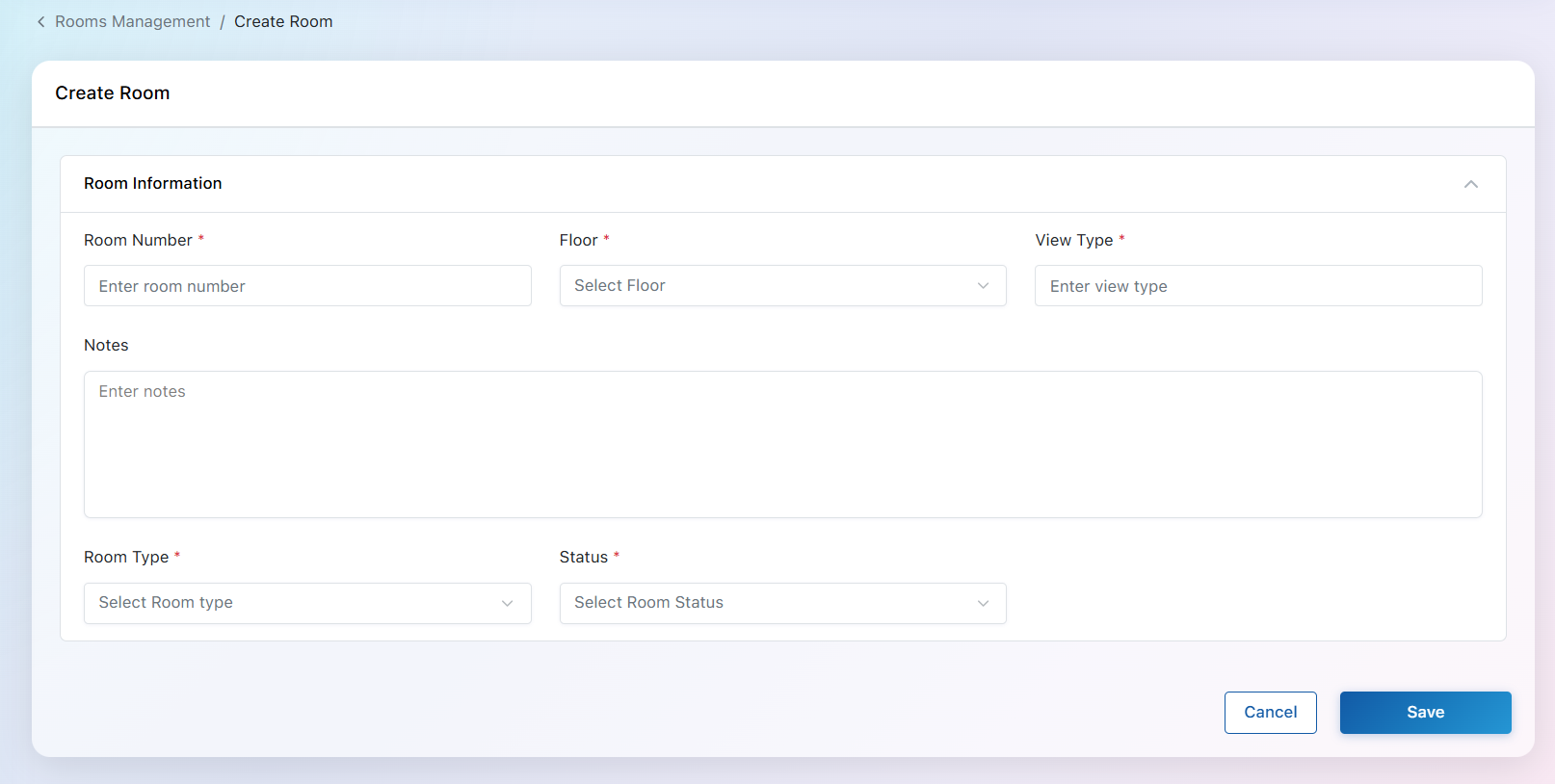
The Add Room option allows you to create one room at a time. This method is useful when adding a new room after the initial setup or when only a few rooms need to be created.
While adding a room, you can configure details such as:
- Room Number, Floor, View Type, Notes(Optional), Room Type, Room Status
Auto-Fetched Room Information
After selecting a Room Type, BluEarn PMS automatically retrieves all the information configured during the Room Type setup.
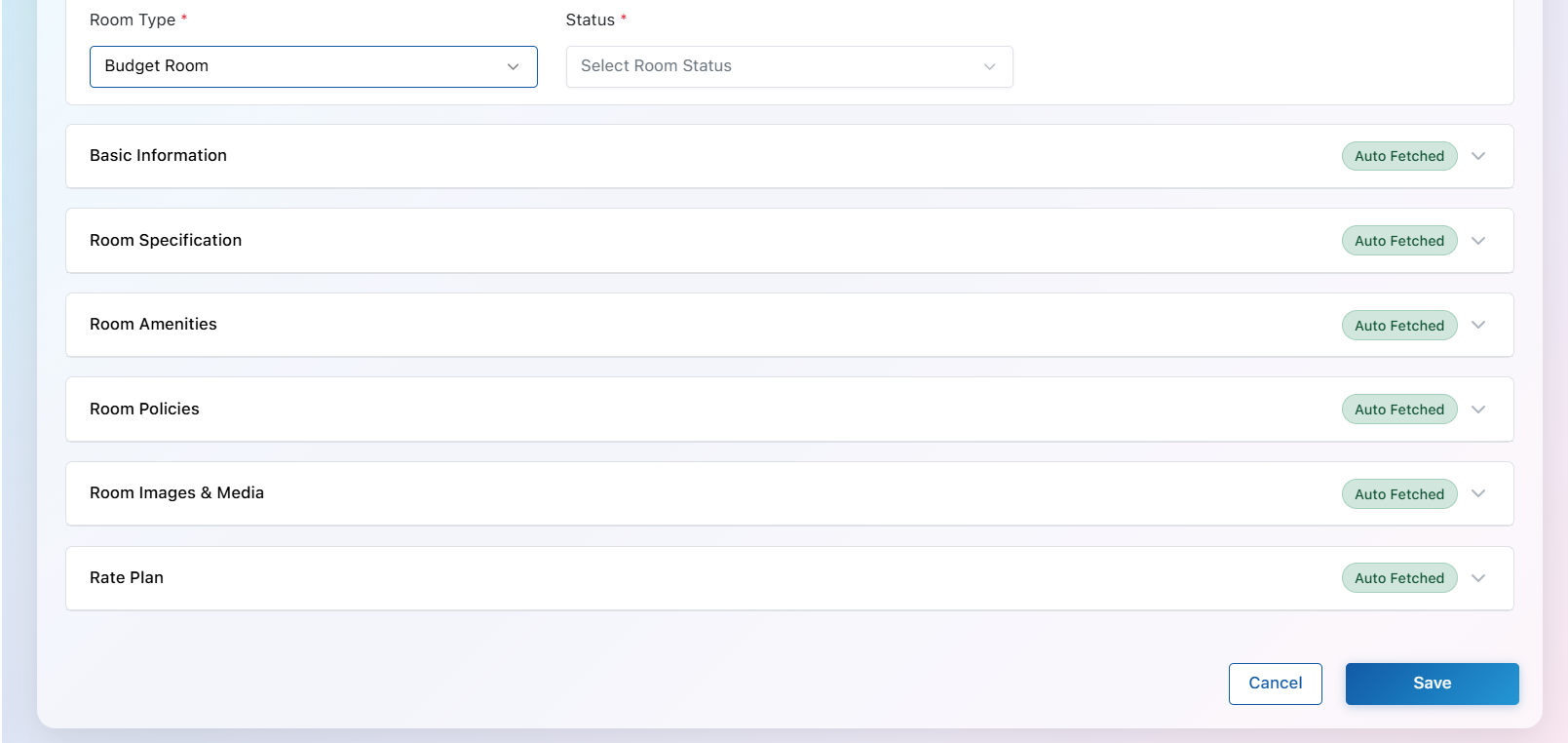
Once saved, the room becomes part of your room inventory and is available for reservations based on its availability and status.