Room Type
Room Management helps you organize your property's inventory and prepares your PMS for handling reservations efficiently.
In this setup, you can:
-
Create different room categories.
-
Add individual rooms to your inventory.
-
Configure pricing through rate plans.
-
Track room availability and occupancy.
Steps to Set Up
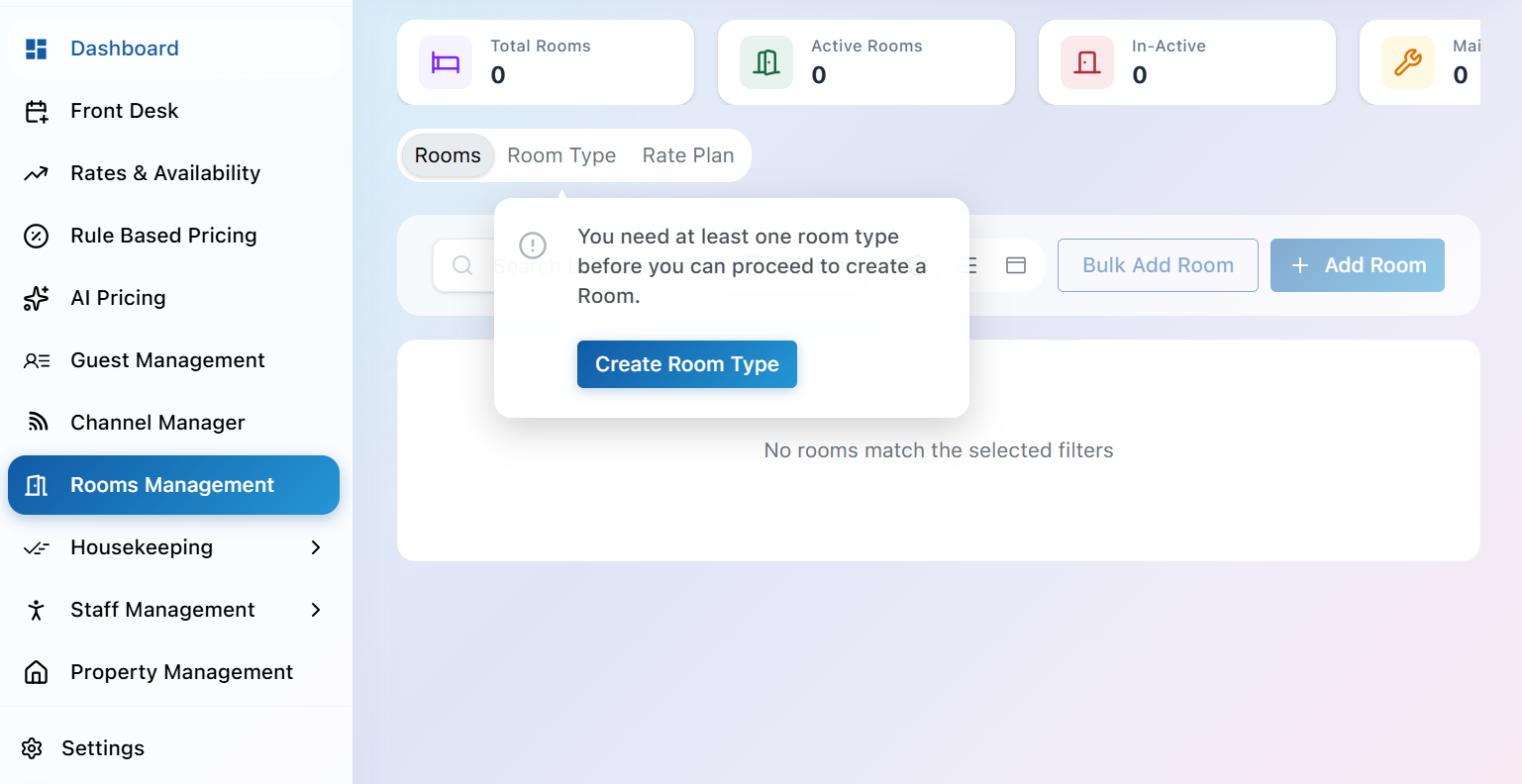
1. Create Room Type
Before adding individual rooms to your property, you must first create one room type. A Room Type represents a category of rooms such as bed configuration, room size, amenities, pricing etc.. Once a room type is created, it can be assigned to multiple rooms.
Provide the Following Room Details
-
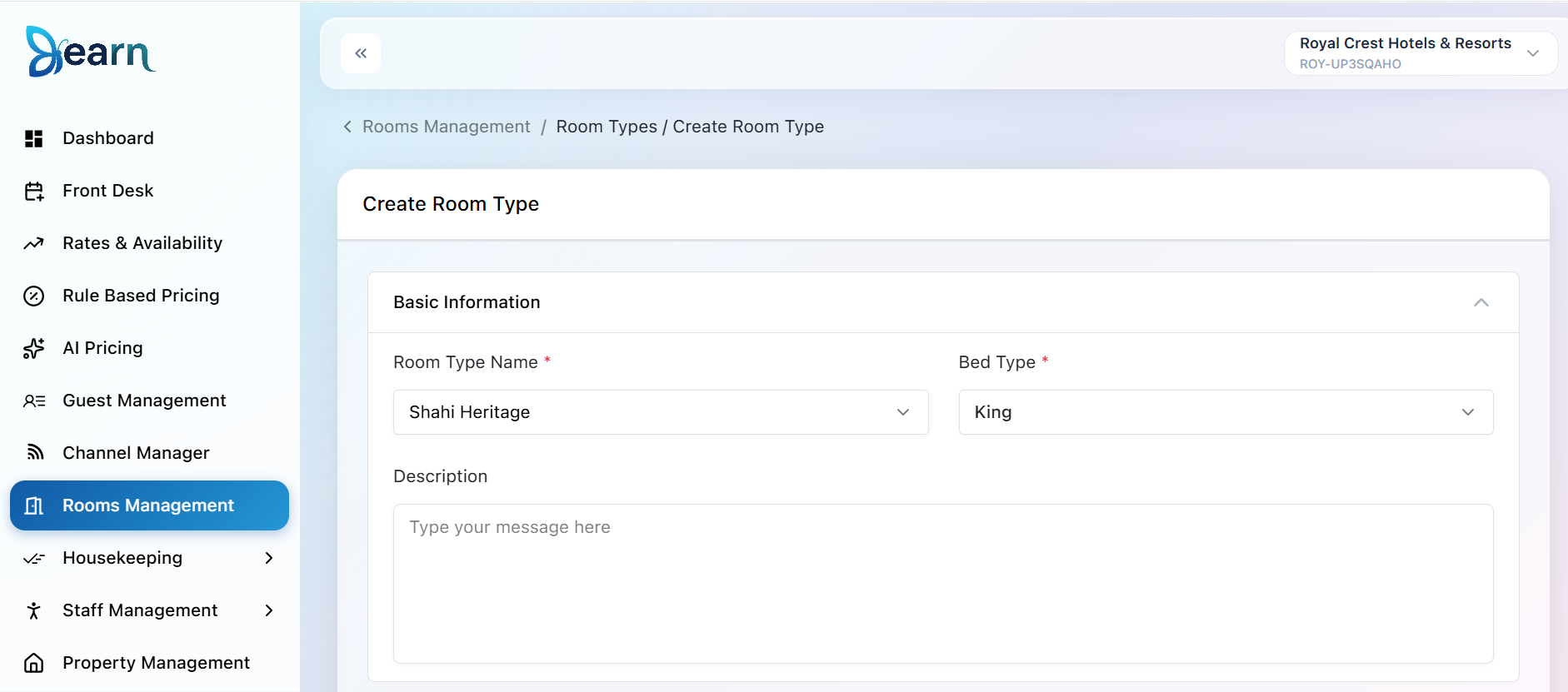
Basic Information
-
Room Type: Select an existing room type from the dropdown or enter a custom room type.
-
Bed Type: Choose the bed configuration for the room, such as Single, Double, Queen, King, Twin, or other available options.
-
Description(optional): Describe the room type features or anything related to room type.
-
-
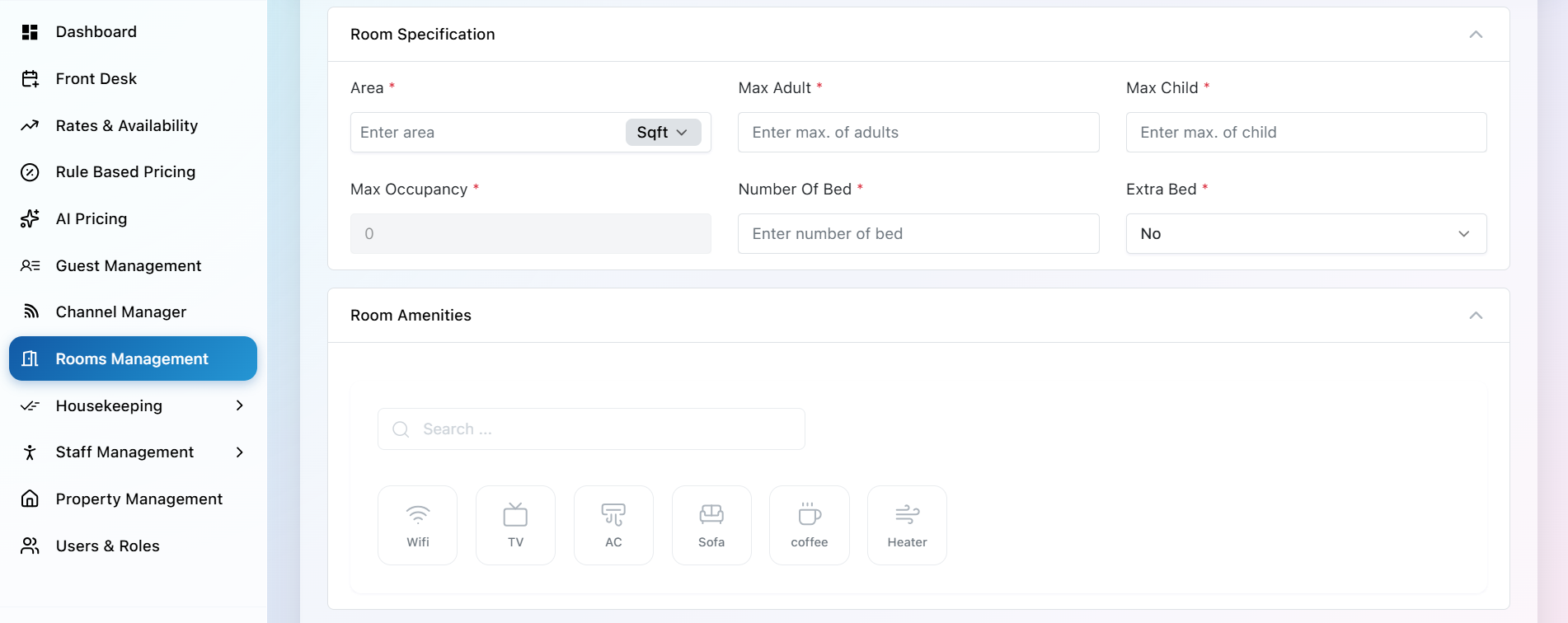
Room Specification & Room Amenities
-
Room Area Specify the size of the room and select the appropriate measurement unit (e.g., Sq. Ft. or Sq. M.).
-
Maximum Adults Define the maximum number of adults allowed to stay in this room type.
-
Maximum Children Specify the maximum number of children that can be accommodated.
-
Number of Beds Enter the total number of beds available in the room.
-
Extra Bed Indicate whether an extra bed is available for this room type. If enabled, specify the additional charge per extra bed.
-
-
Select the Room Amenities available for this room type (optional)
- Wi-Fi, Air Conditioning, Television etc..
-
Room Policies and Room Images & Media (Optional)
-
Smoking Allowed: Enable this option if smoking is permitted in this room type. Disable it to mark the room as non-smoking.
-
Pets Allowed: Enable this option if guests are allowed to bring pets. Disable it if pets are not permitted in this room type.
-
Room Images & Media: Adding high-quality images(.jpg, .jpeg, .png) and a virtual tour helps guests better understand the room's layout, amenities, and overall experience.
-
Note: Both Room Policies and Room Images & Media are optional. You can configure them during room type creation or update them later as needed.
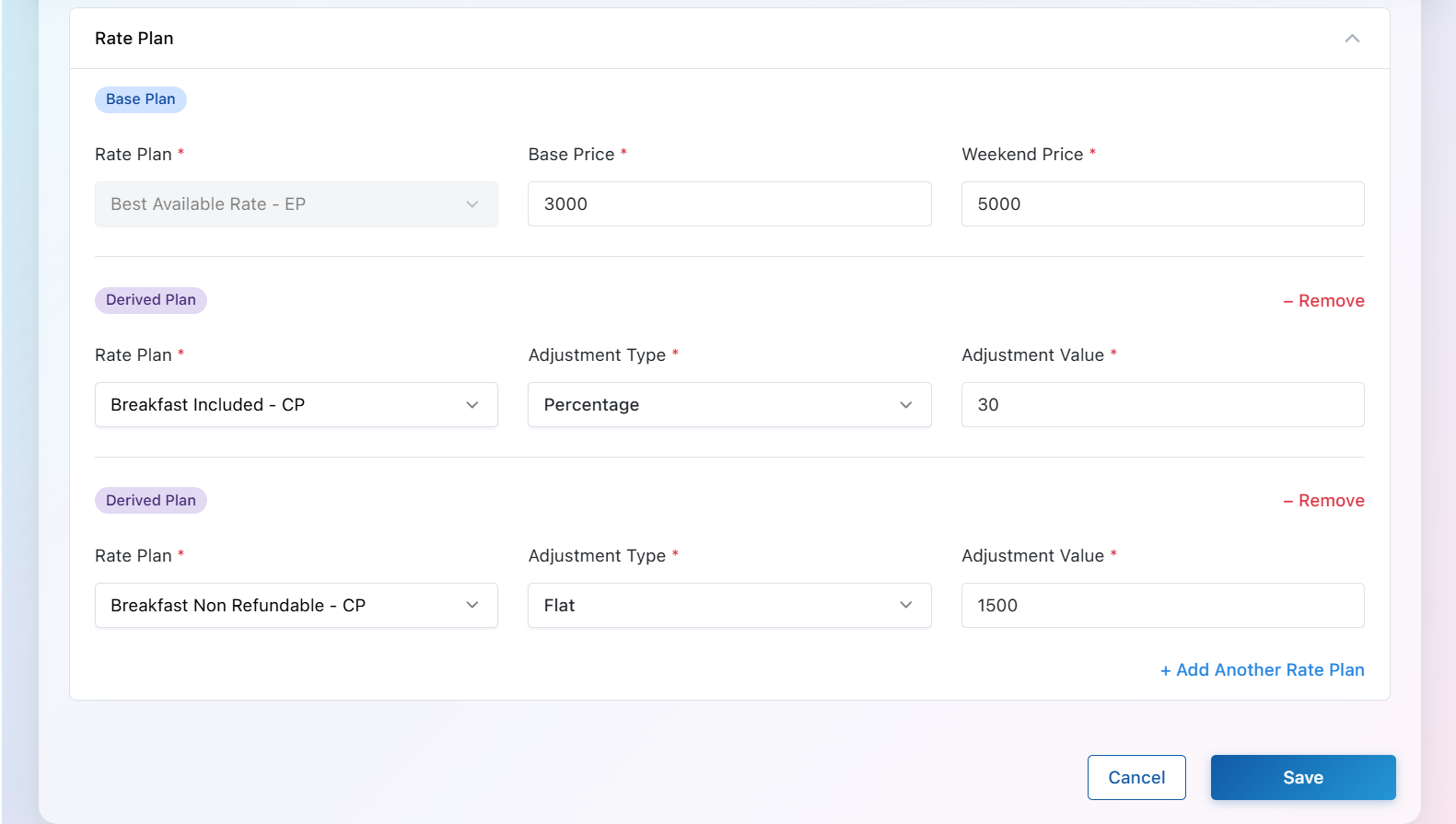
- Rate Plan
The Best Available Rate (BAR) is created automatically and cannot be removed.The Best Available Rate (BAR) is the default rate plan for every room type. Here, you define the Base Price and Weekend Price, which serve as the foundation for all other rate plans. Additional rate plans can be added through rate plan screen.